# Creating a Google Gemini Gem

### Preamble

Google Gemini Gems are useful to define repeatable tasks, and to set rules for Gemini to stick to that are reusable for multiple chats/conversations.

#### Quick Links

<table border="1" id="bkmrk-view-your-gems-https" style="border-collapse: collapse; width: 100%; height: 64.8px; background-color: rgb(34, 43, 50); border: 1px inset rgb(35, 111, 161);"><colgroup><col style="width: 27.4286%;"></col><col style="width: 72.6667%;"></col></colgroup><tbody><tr style="height: 29.6px;"><td style="height: 29.6px; border-color: rgb(35, 111, 161);"><span style="color: rgb(194, 224, 244);">**View Your Gems**</span></td><td style="height: 29.6px; border-color: rgb(35, 111, 161);">[https://gemini.google.com/gems/view](https://gemini.google.com/gems/view)</td></tr><tr style="height: 35.2px;"><td style="height: 35.2px; border-color: rgb(35, 111, 161);"><span style="color: rgb(194, 224, 244);">**Create a New Gem**</span></td><td style="height: 35.2px; border-color: rgb(35, 111, 161);">[https://gemini.google.com/gems/create](https://gemini.google.com/gems/create)</td></tr></tbody></table>

### Creation

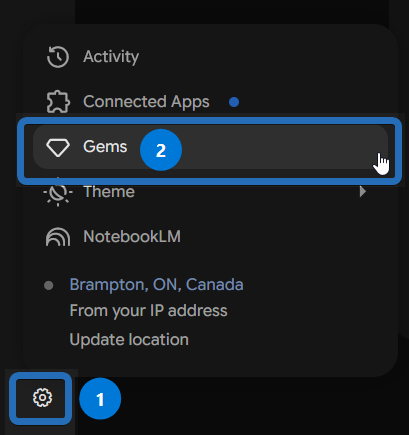
**1.** To create a Gem, start by clicking on the Cog/Gear <span style="color: rgb(53, 152, 219);">**( 1 )**</span> icon in the bottom right corner of the [Gemini App](https://gemini.google.com/app), and then click on the `Gems` option <span style="color: rgb(53, 152, 219);">**( 2 )**</span>:

[![image.png](https://docs.pagit.xyz/uploads/images/gallery/2026-06/scaled-1680-/image.png)](https://docs.pagit.xyz/uploads/images/gallery/2026-06/image.png)

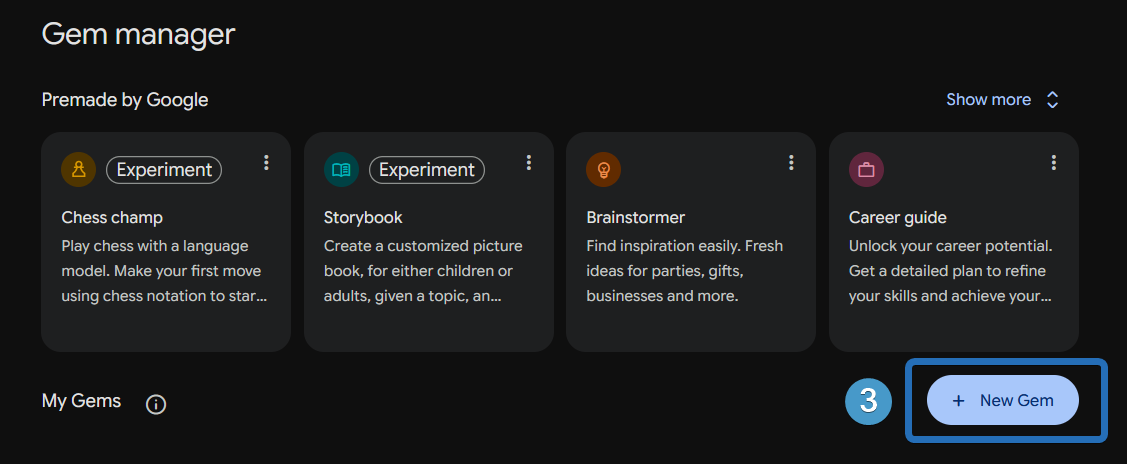
**2.** To the right of the `My Gems` heading, click on the `New Gem` button <span style="color: rgb(53, 152, 219);">**( 3 )**</span>:

[![image.png](https://docs.pagit.xyz/uploads/images/gallery/2026-06/scaled-1680-/tWVimage.png)](https://docs.pagit.xyz/uploads/images/gallery/2026-06/tWVimage.png)

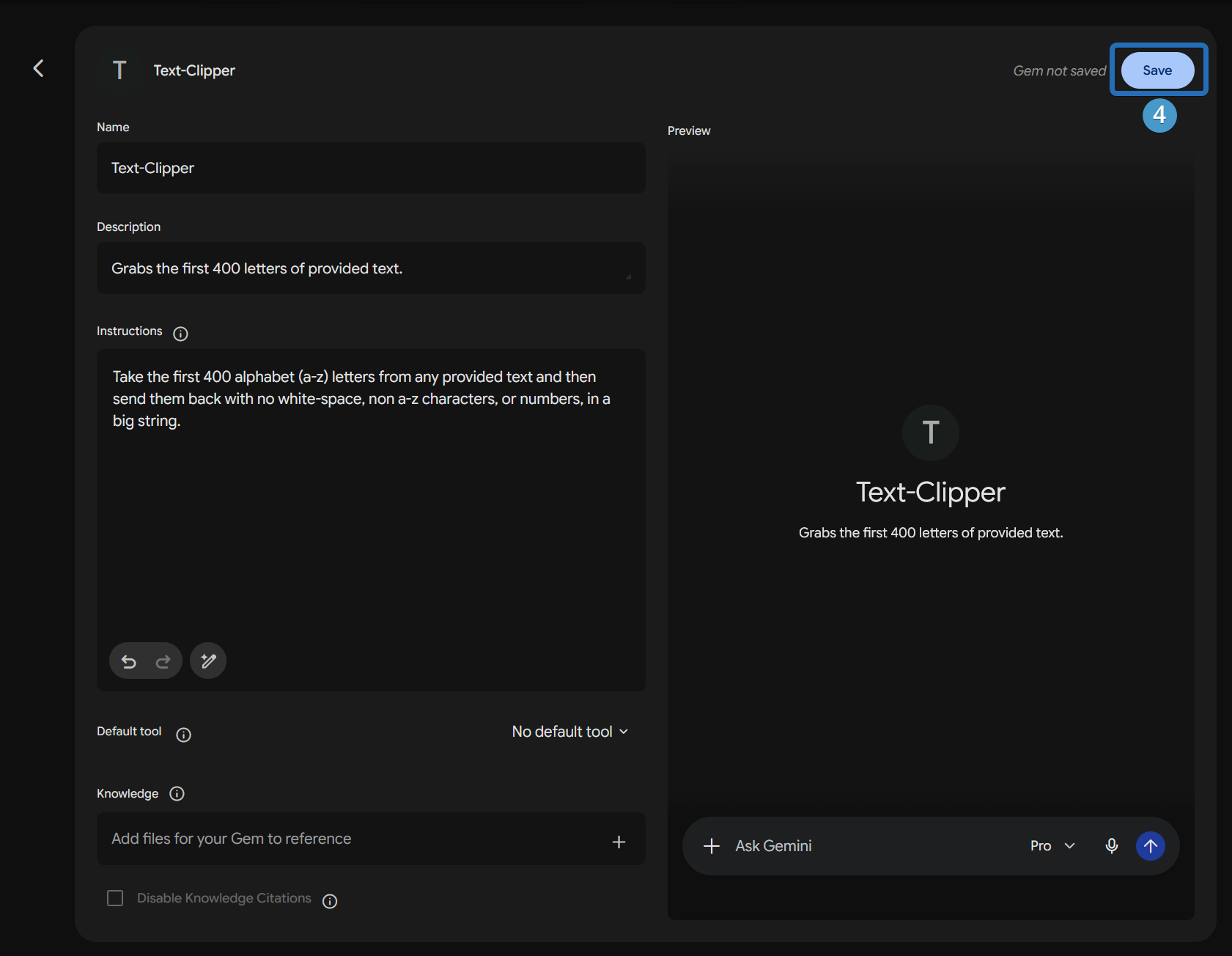
**3.** Now you can create your Gem, and provide the instructions that Gemini follow for any interactions with/using this Gem, and save it by clicking the `Save` button <span style="color: rgb(53, 152, 219);">**( 4 )**</span>:

[![image.png](https://docs.pagit.xyz/uploads/images/gallery/2026-06/scaled-1680-/pmJimage.png)](https://docs.pagit.xyz/uploads/images/gallery/2026-06/pmJimage.png)

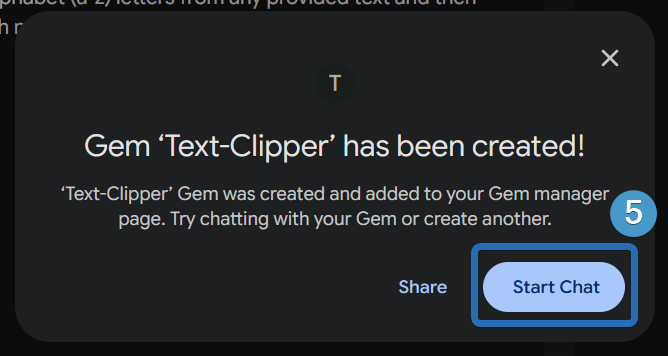
**4.** You now can start chatting with this Gem via the `Start Chat` button <span style="color: rgb(53, 152, 219);">**( 5 )**</span>, or share it with other employees:

[![image.png](https://docs.pagit.xyz/uploads/images/gallery/2026-06/scaled-1680-/uxUimage.png)](https://docs.pagit.xyz/uploads/images/gallery/2026-06/uxUimage.png)